Share


Customer conversations happen throughout the day. Even when you’re away from the desk or focused on solving other important tasks.
Meet Splynx CommsApp. Our latest addition to the mobile portfolio every modern ISP must have. It’s a special companion app for support and admin staff that puts support tickets and WhatsApp conversations in your pocket. Your team can reply to customers, check account details, and manage ticket statuses away from the desk. Think of it as your mobile support desk.
The CommsApp is a mobile app built specifically for ISP support agents and administrators. It connects directly to your Splynx instance and pulls in two things: support tickets and WhatsApp conversations. Everything syncs in real time with the web platform, so anything your team does in the app shows up in Splynx immediately, and vice versa.
And, just for the record, it’s the third app in the Splynx mobile ecosystem:
Together, they cover the three groups that need mobile access the most: subscribers, field technicians, and the support team. Now, let’s take a look at the main benefits Splynx CommsApp offers:
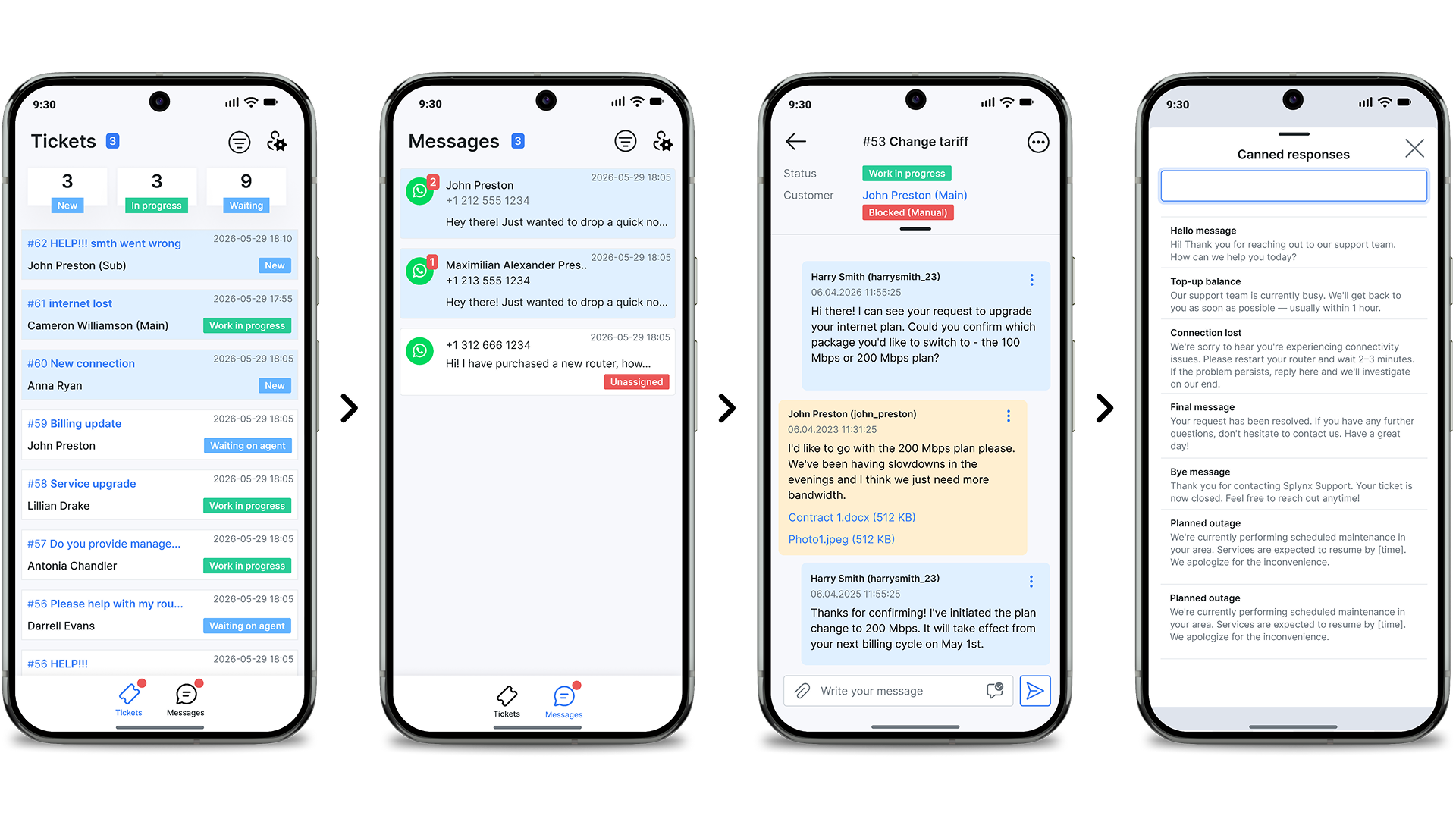
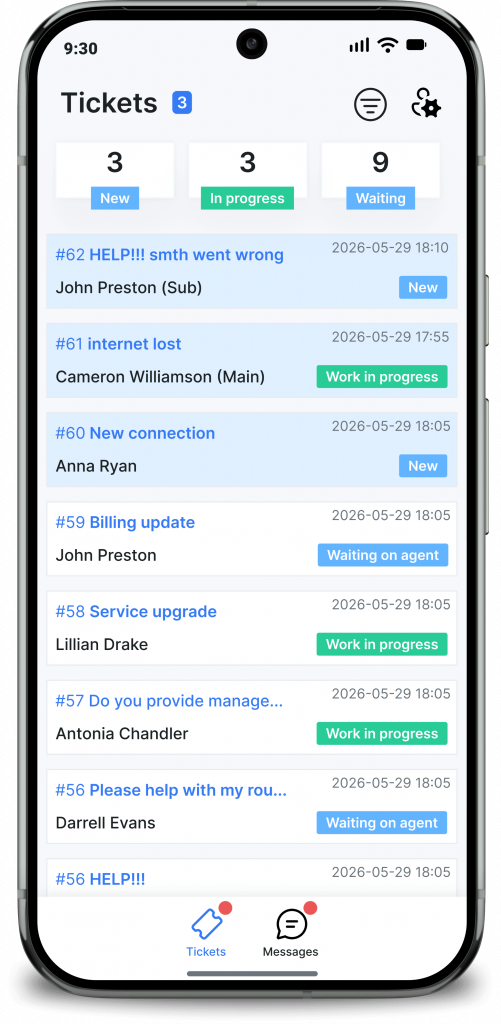
The Tickets tab is the first screen you see when opening the app. At the top, three counters give you an instant overview: how many tickets are New, In progress, and Waiting. Below that, each ticket is listed with the subject line, customer name, timestamp, and current status.
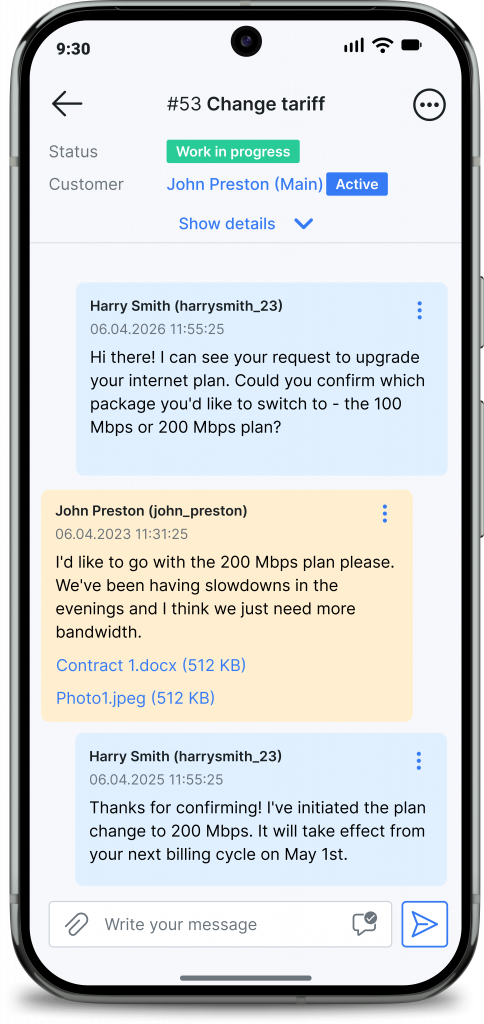
Tap any ticket to open the full conversation thread. You can see the complete history between the customer and your team, including previous replies, internal notes, and attached files. From this same screen, you can:
Consider a common scenario. Your support agent steps out for a break. A subscriber opens a ticket about their internet being down. The agent’s phone buzzes with a push notification. They open the CommsApp, check the customer’s service status and IP address, and send a quick reply with troubleshooting steps. The customer gets a response within minutes instead of waiting for someone to return to their desk.
That kind of responsiveness makes a measurable difference. Research from Perspective AI found that proactive support conversations can cut churn by as much as 40% (Perspective AI, 2026).
You can also set up a ticket signature that gets appended automatically to every reply you send from the app. This keeps outgoing messages consistent and professional, regardless of whether the reply comes from the web interface or the phone.
The second tab in the app is Messages. This is where all WhatsApp conversations from your Splynx instance appear. Each chat shows the customer’s name (or phone number for unknown contacts), the last message preview, a timestamp, and unread message badges.
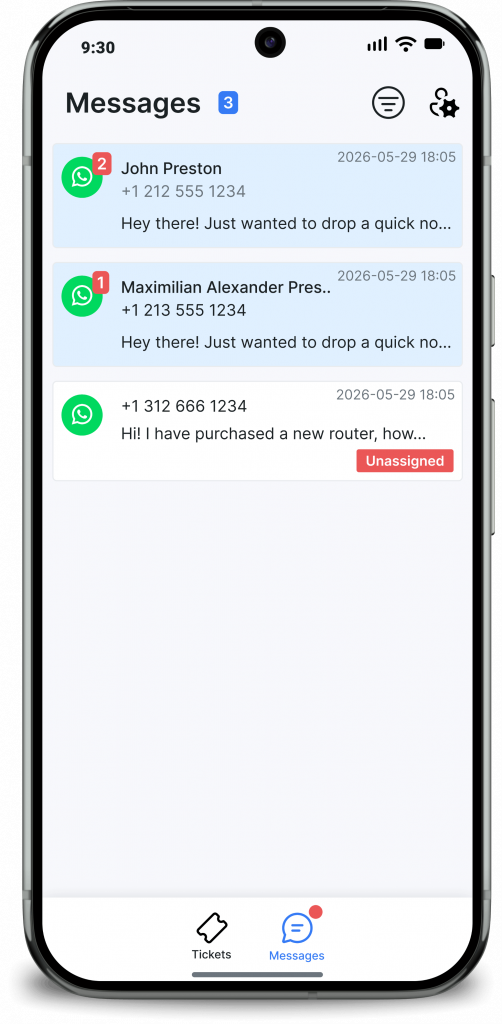
Conversations that haven’t been claimed by any agent are marked as Unassigned in red. This makes it easy to spot incoming chats that need attention, even when you’re away from the office.
The Messages tab syncs with the Splynx web platform in real time. If a colleague picks up a conversation in the browser, the app reflects that immediately. No double-handling, no conflicting replies.
This is especially useful during service outages, when multiple customers may reach out at once. Your team can split the workload between the web interface and the mobile app. One person handles conversations at their desk while another responds from their phone. Both see the same data, and all replies are logged in one place.
For ISPs using WhatsApp mass sending to notify customers about planned maintenance or promotions, the CommsApp handles the follow-up side. After a mass message goes out, some customers will reply. Those replies appear in the Messages tab, ready for your team to address from wherever they are.
One of the most practical features in the CommsApp is quick access to customer profiles. When you’re inside a ticket or a WhatsApp conversation, tap the customer’s name to pull up their full record.
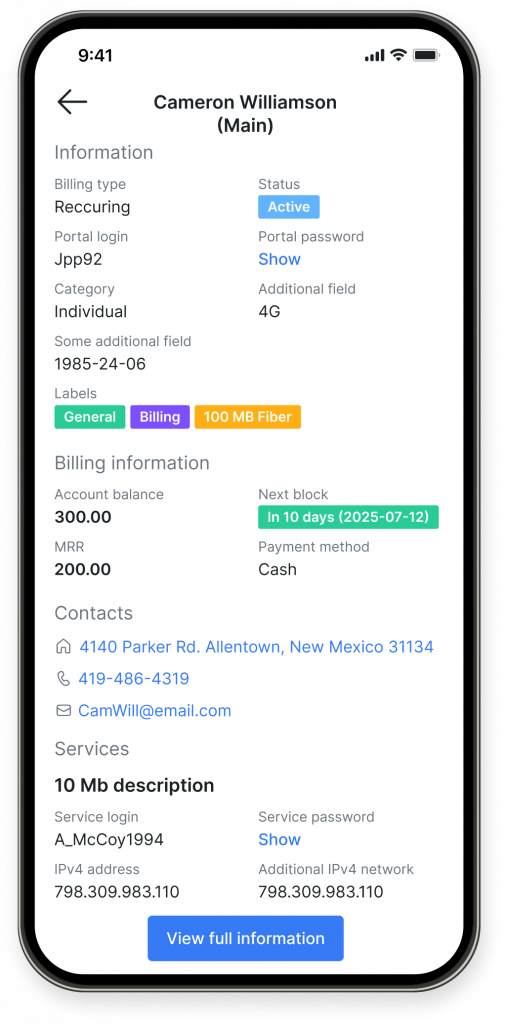
The profile includes:
This means your agent doesn’t need to ask the customer for their account number or plan details. They don’t need to open a browser and search for the subscriber in Splynx. Everything they need to assess the situation is right there, inside the same app where the conversation is happening.
You control which sections of the customer profile appear in the app through Fields settings. If your support team doesn’t need to see service credentials, for example, you can toggle that section off.
ISP support involves a lot of repetitive communication. “We’re aware of the outage and working on it.” “Your router needs a restart.” “Your ticket has been resolved.” Typing those messages out every time slows agents down, especially on a phone keyboard.
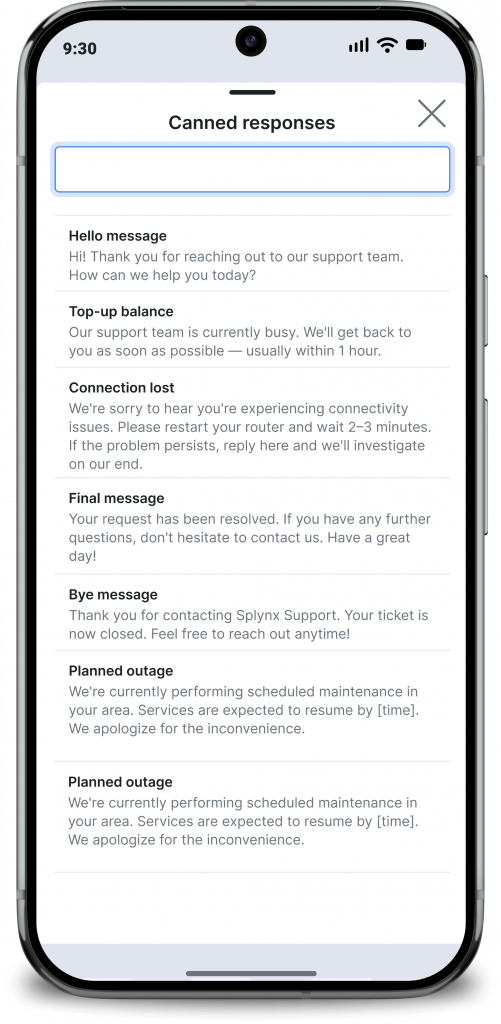
The CommsApp includes canned responses that your team can insert with a tap. These are managed centrally in Splynx and synced to the app, so every agent has access to the same set of pre-written replies.
Some examples of canned responses you might set up:
Canned responses work in both the Tickets and Messages tabs. They keep replies consistent, reduce typing time, and help newer team members respond with the right tone and information.
The CommsApp supports push notifications for five event types. Each one can be toggled on or off individually, so agents only receive alerts for what matters to their role.
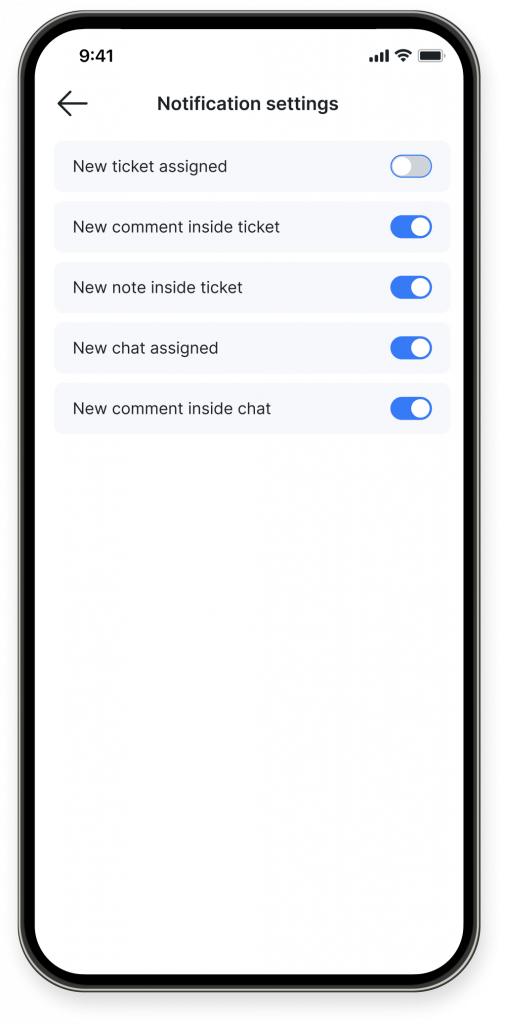
The five notification types are:
| Notification | When it triggers |
|---|---|
| New chat assigned | A WhatsApp conversation is assigned to you |
| New comment inside chat | A customer sends a new message in an assigned chat |
| New comment inside ticket | A customer replies to a ticket you’re handling |
| New note inside ticket | A colleague adds an internal note to your ticket |
| New ticket assigned | A new support ticket is assigned to you |
This is the feature that makes mobile support practical rather than just possible. Without notifications, agents would need to keep checking the app manually. With them, the phone buzzes when something needs attention, and the agent can decide whether to handle it now or after they finish what they’re doing.
During the Splynx 6.0 webinar, our team demonstrated a live example: a new customer signed up through the online sign-up flow, and the notification appeared on the CommsApp almost instantly. That kind of real-time awareness means your team never misses a new lead or an urgent support request.
Setting up the CommsApp takes a few minutes. Here’s what to do:
1. Download the app
2. Log in with your Splynx credentials
Enter your Splynx server URL (the same URL you use to access the web interface), your login, and your password. The app connects directly to your instance.
3. Configure your preferences
Open Settings from the top-right corner and set up:
4. Start handling tickets and messages
That’s it. All your assigned tickets and WhatsApp conversations will appear in the app immediately. Any actions you take sync back to Splynx in real time.
The CommsApp is available to all Splynx customers at no additional cost. If your ISP has already set up the WhatsApp integration in Splynx, the Messages tab will populate automatically with your existing conversations. More messaging channels and features are coming soon as we continue expanding this app.
Raising the standard of first-line support for ISPs
ISPs using outdated systems have a tough choice. Either give your first-line support agents the tools and information th...
Shift towards user self-service — Splynx Customer Portal & TR-069 ACS
The ISP industry has undergone significant transformations in recent years, with a notable shift towards user self-servi...
A new modern look for Admin and Customer Portal
Admin Portal and Customer Portal login pages have been redesigned as part of Splynx v5.1 to help ISPs highlight what is ...
Customer communication for ISPs: 7 tips to reduce churn and increase revenue
Customer communication is key in any business. For local ISPs, however, it can mean the difference between growth and si...
Reduce churn and upsell more with QoE provisioning and proactive support
In this article, we'll look at the benefits of being proactive and what it's like to be among ISP owners who out-serve, ...
Splynx Integration with Netcash: Introducing the eMandate Feature
Simplifying recurring debit orders and reducing the workload for your accounting team—discover the latest updates to t...
WhatsApp Business for ISPs: How to Integrate, Use and Benefit
Not sure how to use WhatsApp Business? Here’s our in-depth guide where you’ll learn a simple workflow to use Splynx ...
Help Desk ticket process flow strategies and best practices
Any effort to streamline workflow won't work without the automation of routine processes, and ticketing is no exception.
Maximize Support Efficiency with Ticketing Module Tailored for ISPs
Whether you're new to ticket automation or already seeing benefits, keep reading to learn how to elevate support and del...
Six Sigma For Your ISP: Work on Mistakes
Can Six Sigma philosophy help internet providers improve existing processes and boost business growth? Yes, definitely!
Find out how Splynx helps ISPs grow
Learn more