Share



Email aliases in Splynx are here. In this post, we’ll walk you through how to organize your ISP’s email communication: route incoming messages to the right team, send from department-specific addresses, and keep everything compliant with modern deliverability requirements. We’ll also explain why we dedicated the time to building this frequently requested feature.
Key Takeaways
Before thinking about sending, start with receiving. When a customer emails your ISP, that message needs to reach the right person, not sit in a shared pile.
Splynx inboxes let you connect multiple email addresses and route incoming messages to specific teams. Each inbox maps to an IMAP mailbox and can be assigned to a group of agents. When an email arrives at support@yourisp.com, it lands in the Support group’s queue. An email to billing@yourisp.com goes to Finance.
You can set up auto-assignment rules so tickets created from incoming emails are distributed among agents in that group. No manual sorting, no messages falling through the cracks.
This is where the foundation of your communication structure lives. Set up your inboxes first, then layer outgoing aliases on top.
Set up inboxes in the documentation →
This is the feature ISPs have been asking for. Instead of every outgoing email coming from a single address, you create aliases that match your departments:
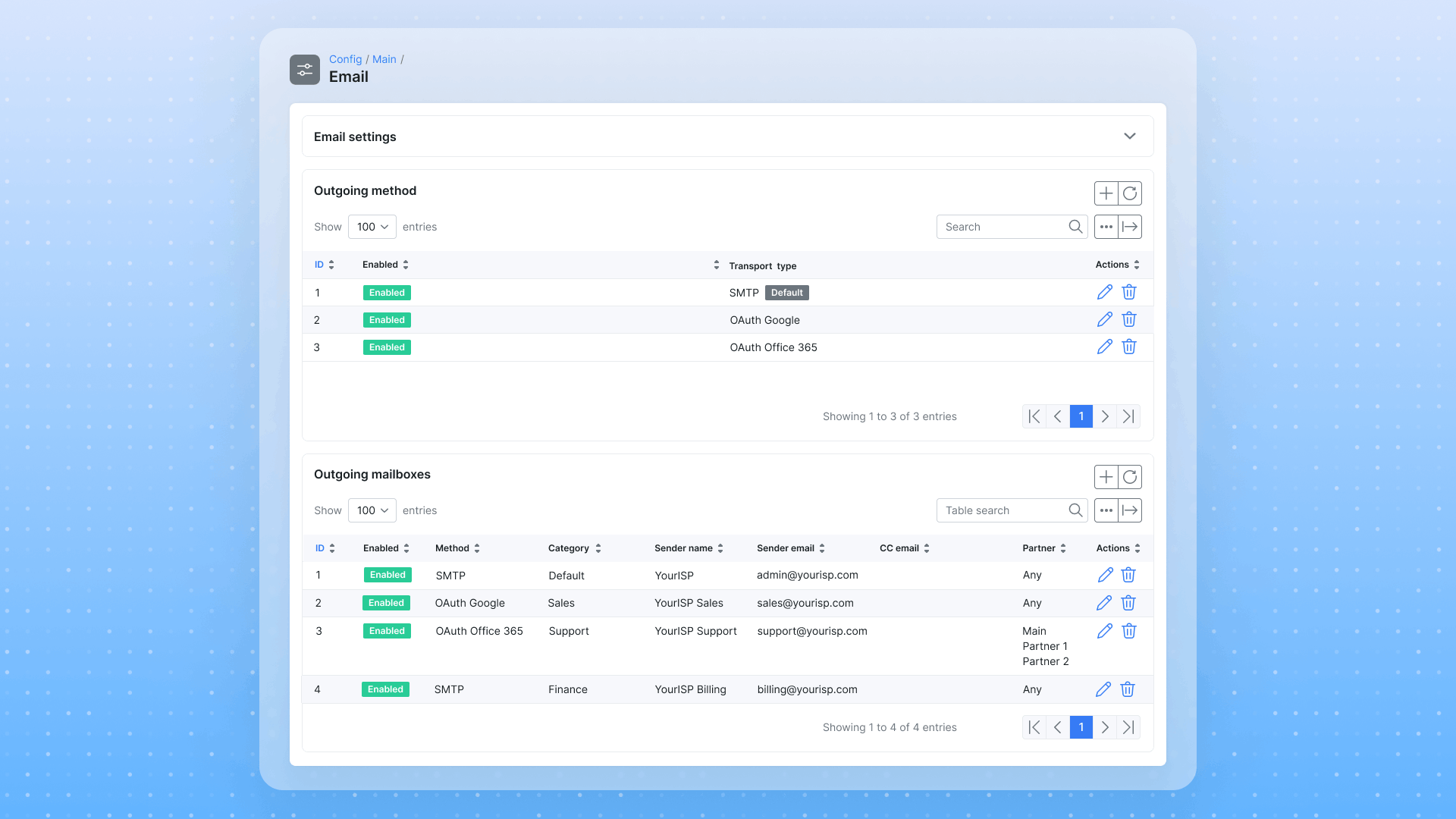
Each alias is configured under Config → Main → Email with a sender name, sender email, and a category that controls which automatic notifications it handles:
| Category | Handles |
|---|---|
| Default | General, Add-ons, Inventory, Monitoring, Scheduling |
| Sales | Leads |
| Support | Tickets, WhatsApp |
| Finance | Billing |
When Splynx sends an invoice, it looks up the Finance alias and uses billing@yourisp.com as the sender. When a ticket auto-reply goes out, it uses the Support alias. Each department gets its own sender identity without any manual work per message.
For multi-brand ISPs, aliases can be linked to specific partners. Partner A’s customers see emails from Partner A’s address. Partner B gets their own.
Configure email aliases in the documentation →
Automatic notifications pick the correct alias based on category. But when your team sends manual emails, they need to choose.
A “Send from” picker now appears when agents:
The picker shows available aliases as sender@email.com (Category), so agents see exactly which identity they’re using and can switch with one click.
When an incoming email arrives on a specific alias, Splynx remembers it. All replies from your team go out through that same address automatically. The customer sees one consistent sender throughout the entire conversation.
Learn more about email messages in support →
Separate aliases help your sender reputation, but there’s more to deliverability. Since February 2026, Gmail and Yahoo require bulk senders to support one-click unsubscribe and authenticate with SPF, DKIM, and DMARC.
Splynx handles the first part automatically. Every outgoing customer email now includes List-Unsubscribe and List-Unsubscribe-Post headers (RFC 2369 + RFC 8058). Gmail and Yahoo show a native “Unsubscribe” button next to your sender name, so subscribers opt out cleanly instead of hitting the spam button.
For SPF, DKIM, and DMARC, you configure DNS records on your sending domain. The documentation includes setup instructions and a verification checklist.
Set up email deliverability (SPF, DKIM, DMARC) →
Here’s what a fully configured ISP email setup looks like:
| Address | Receives via | Sends via | Used for |
|---|---|---|---|
| admin@yourisp.com | Inbox → General group | Default alias | System notifications, internal |
| sales@yourisp.com | Inbox → Sales group | Sales alias | Lead emails, outreach campaigns |
| support@yourisp.com | Inbox → Support group | Support alias | Ticket replies, WhatsApp alerts |
| billing@yourisp.com | Inbox → Finance group | Finance alias | Invoices, payment reminders |
Incoming and outgoing work together. A customer emails support@yourisp.com. The message creates a ticket in the Support group. An agent replies, and the response goes out from support@yourisp.com automatically.
You can track which alias sent each email in Administration → Logs → Email, where a Sender column shows the mailbox used for every message.
The setup takes three steps:
In the realm of network management, MikroTik is a popular choice for its robust features and cost-effectiveness. One of ...
VOIP CDR Auto Processing from FTP Server
Nowadays every business is seeking to achieve the decrease of manual effort in the essential processes. Splynx voice bil...

Splynx system is a powerful set of modules and open application interfaces (API), so we call it a Framework.
Splynx's self-registration functionality allows your clients to register and helps you skip the routine process of addin...
Ubiquiti EdgeRouters PPPoE RADIUS support
UBNT EdgeRouters can act as a PPPoE server, with authentication of CPEs, providing statistics, blocking end-users, and s...
Find out how Splynx helps ISPs grow
Learn more