


Overview
Splynx 6.0 or later. The MCP server ships with 6.0 and isn't available on earlier versions.
MCP (Model Context Protocol) is an open standard that lets AI assistants talk to external systems in a safe, structured way. With the Splynx MCP server, your Splynx instance becomes one of those systems: an AI client connects to it and can work with the full Splynx admin API (~500 operations) on your behalf - always within the permissions of the account or API key it connects with.
If you're a developer writing a custom Splynx add-on and want an AI assistant that knows the add-on architecture, API, and conventions, that's the Splynx Add-ons MCP Server - a separate tool built for developers. It doesn't connect to a live Splynx instance and never touches customer data.
Your Splynx URL with /mcp appended, e.g. https://your-splynx.example.com/mcp
MCP Streamable HTTP - a single secure HTTPS endpoint that speaks the MCP protocol (JSON‑RPC). It is not a REST API: your MCP client handles all protocol details, so you never build requests by hand.
Claude Desktop, Claude Code, Cursor - tested. Any client that supports remote (Streamable HTTP) MCP servers can connect.
OAuth sign‑in - log in with your Splynx admin account (recommended for desktop assistants; no keys to copy). API key (Basic Auth) - an existing key + secret, best for scripted setups.
What you can ask it to do
You describe the goal in plain language; the assistant finds the right operation, calls Splynx, and reports back. Everything it does is logged - see Audit trail.
Splynx‑side setup
You can connect either with your administrator account (OAuth) or with an API key. Choose one.
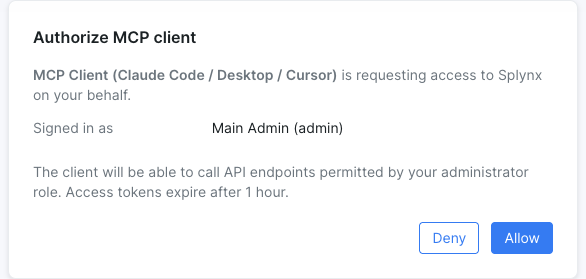
2a · Sign in with your Splynx account (OAuth - recommended)
Nothing to prepare in Splynx. The AI client opens your browser, you log into Splynx, approve the connection, and you’re done. The assistant then acts with your administrator permissions.
The Splynx server advertises the standard OAuth 2.1 discovery endpoints, so compatible clients configure themselves automatically. See Client configuration for per‑client steps.
2b · Create an API key (Basic Auth)
Use this for automation or clients that prefer a static credential.
Go to Administration → API keys and click to add a new key.
Copy the generated Key and Secret - you’ll paste them into the client.
Set the key’s permissions using the standard permission tree. The MCP server reuses these permissions exactly: the assistant can only see and call operations this key is allowed to use. A read‑only key produces a read‑only assistant.
(Optional) Restrict the key by IP under its whitelist - the MCP endpoint enforces the same IP allow‑list as the REST API.
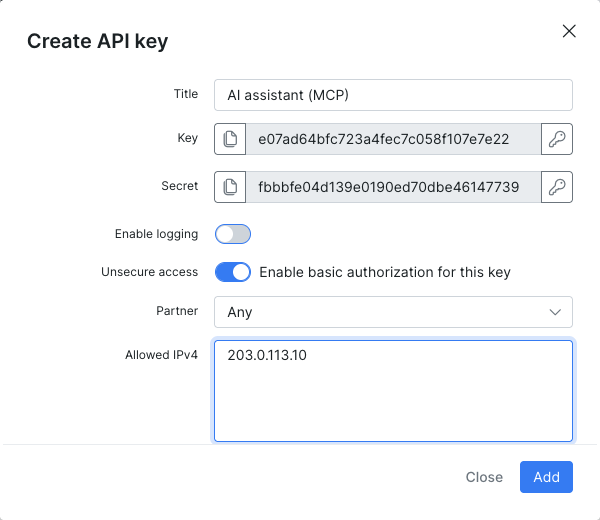
Grant the key only the permissions the assistant actually needs. Anything the key cannot do, the assistant cannot do - and operations it lacks permission for won’t even appear when it searches for tools.
2c · Permissions decide what the assistant can do
The MCP server adds no new permission system - it reuses Splynx’s existing permissions exactly. Whatever you can do in Splynx defines what the assistant can do; nothing more.
- API key (Basic Auth): the key’s permission tree applies (Administration → API keys). Each API operation maps to a permission; only the permitted ones are available.
- OAuth (account sign‑in): the signed‑in administrator’s role and permissions apply - the same access that admin has in the web interface.
Permissions are granted per module and per action (e.g. view vs add vs delete), so you control access precisely - for example: read customers, create tickets, but no access to finance at all.
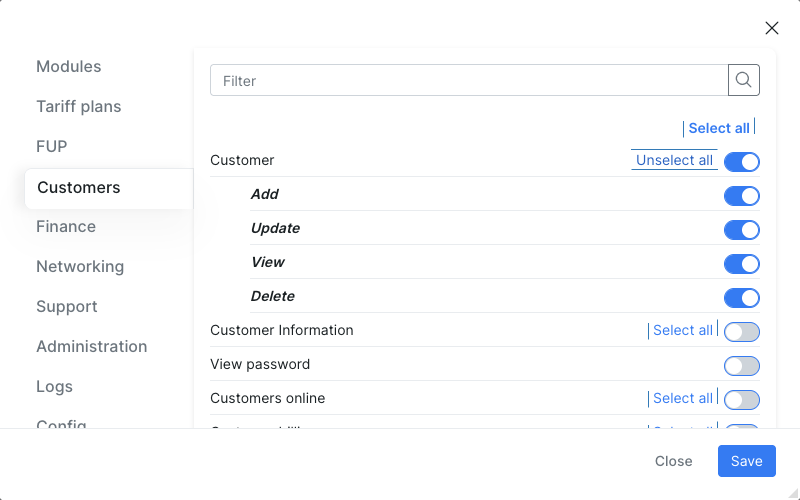
How this shapes the assistant in practice:
- Hidden, not just blocked. Operations you don’t have permission for don’t even appear when the assistant searches for tools - so it won’t try to use them. If it does call something out of scope, Splynx returns Access denied.
- Read‑only stays read‑only. A key or role with only view permissions produces an assistant that can look things up but never change anything. Grant add / update / delete only if you want it to create or modify data.
- Scope per connection. Different keys (or admins) connected from different clients each get their own access - a narrow reporting key and a full‑access admin can both connect, each limited to its own permissions.
Create a dedicated API key for the assistant with only the permissions its task needs (e.g. read‑only for reporting), rather than reusing a broad key. To change what the assistant can do later, just adjust that key’s permissions (API key) or the administrator’s role (OAuth) - the change takes effect on the next request.
Client configuration
Replace https://your-splynx.example.com with your real Splynx URL everywhere below.
The selected method applies to all three clients below.
For API‑key setups you pass an Authorization: Basic … header. Build the value by base64‑encoding key:secret:
# Prints the value to put after "Basic "
printf '%s' 'YOUR_KEY:YOUR_SECRET' | base64
The client snippets below follow each client’s current configuration format. Exact menu wording can differ between client versions - if a field name doesn’t match, look for the equivalent “add MCP server / connector” option.
Claude Code
Add the server, then authenticate:
claude mcp add --transport http splynx https://your-splynx.example.com/mcp
Then run /mcp inside Claude Code and choose Authenticate for splynx - your browser opens the Splynx login + consent screen.
Equivalent entry in ~/.claude.json:
{
  "mcpServers": {
    "splynx": {
      "type": "http",
      "url": "https://your-splynx.example.com/mcp"
    }
  }
}
Add the server with the Basic Auth header:
claude mcp add --transport http splynx https://your-splynx.example.com/mcp \
  --header "Authorization: Basic BASE64_OF_KEY_COLON_SECRET"
Equivalent entry in ~/.claude.json:
{
  "mcpServers": {
    "splynx": {
      "type": "http",
      "url": "https://your-splynx.example.com/mcp",
      "headers": {
        "Authorization": "Basic BASE64_OF_KEY_COLON_SECRET"
      }
    }
  }
}
Cursor
Edit ~/.cursor/mcp.json (global) or .cursor/mcp.json (per‑project).
Add the entry with the Basic Auth header:
{
  "mcpServers": {
    "splynx": {
      "url": "https://your-splynx.example.com/mcp",
      "headers": {
        "Authorization": "Basic BASE64_OF_KEY_COLON_SECRET"
      }
    }
  }
}
Add the entry (no credentials needed):
{
  "mcpServers": {
    "splynx": {
      "url": "https://your-splynx.example.com/mcp"
    }
  }
}
Cursor detects that the server needs authorization and shows a Login / Needs login button in Settings → MCP - click it to sign in.
Claude Desktop
Claude Desktop’s config file is at:
- macOS:
~/Library/Application Support/Claude/claude_desktop_config.json - Windows:
%APPDATA%\Claude\claude_desktop_config.json
Option 1 - Custom connector (recommended): open Settings → Connectors → Add custom connector, paste https://your-splynx.example.com/mcp, and follow the sign‑in prompt.
Option 2 - Config file via the mcp-remote bridge (works on all editions; requires Node.js installed):
{
  "mcpServers": {
    "splynx": {
      "command": "npx",
      "args": ["-y", "mcp-remote", "https://your-splynx.example.com/mcp"]
    }
  }
}
mcp-remote opens the browser for OAuth automatically.
Config file via the mcp-remote bridge (works on all editions; requires Node.js installed) - pass the Basic Auth header:
{
  "mcpServers": {
    "splynx": {
      "command": "npx",
      "args": [
        "-y", "mcp-remote",
        "https://your-splynx.example.com/mcp",
        "--header", "Authorization: Basic BASE64_OF_KEY_COLON_SECRET"
      ]
    }
  }
}
Restart Claude Desktop after editing the config file.
Using Codex or ChatGPT instead? Step‑by‑step setup guides live on our wiki: Connect via Codex and Connect via ChatGPT.
How to use it
Once the server is connected, the assistant gains access to the Splynx tools automatically - you don’t call tools by hand. Just describe what you want in plain language in your normal chat with the assistant, and it works out which operation to run.
You can write in any language - the assistant translates your request into an English search behind the scenes. The first time you ask for something it may take a moment, as it searches for the right operation, reads its schema, then runs it.
Example requests
“Show the unpaid invoices for customer John Smith.”
The assistant finds the customer, then lists their invoices filtered to unpaid - nothing is changed.
“How many leads came in this week, grouped by source?”
It searches leads, applies a date filter, and aggregates the result.
“Block internet for customer #42.”
It locates the update‑customer operation, recognises this as a change, asks you to confirm, then sets the status to blocked.
“Create a support ticket for customer #42 about a slow connection and assign it to the NOC group.”
It creates the ticket with the subject, customer, and group you named.
Getting good results
- Be specific. Give a name, ID, customer login, or date range - “customer #42” beats “that customer”. The more precise the request, the more precise the call.
- Ask it to preview changes. For anything that writes data, say “show me what you’ll change first” and confirm before it proceeds. Operations marked destructive should always be confirmed.
- Steer it to a category when a term is ambiguous: “in finance, find…” or “search support tickets for…”.
- Refine if results look short. Ask it to “show more” or to add a filter - results are paginated.
- It only sees what you can do. If it can’t find or perform something, the connected account or API key probably lacks that permission (see Troubleshooting).
Treat it like a junior administrator with your permissions. It can read and change real data, so review write actions - especially deletes - before confirming. Everything it does is recorded in the audit trail.
Available tools
Splynx exposes ~500 admin API operations. Listing them all would overwhelm an AI client, so the server presents just 3 meta‑tools and lets the assistant discover the rest on demand. You don’t need to know the API - describe the goal and the assistant does the lookup.
| Meta‑tool | What it does |
|---|---|
search_tools |
Natural‑language search across all operations (query, category?, limit?). Returns the best matches (name, intent, score). Results are pre‑filtered by your permissions - anything returned is callable. |
get_tool_schema |
Returns the full input schema for one operation (name), so the assistant knows exactly which fields to send. |
run_tool |
Executes the chosen operation with the given parameters (name, params). |
Behind the scenes the assistant simply does search → inspect → run. For example, “block customer internet” → finds update_customer → reads its schema → calls it with { id: 42, status: "blocked" }.
Operations are grouped into categories you (or the assistant) can target with the optional category parameter:
| customers | customers, documents, bundle services, discounts, bonus traffic |
| finance | invoices, credit notes, bank statements, payments, finance calc |
| tariffs | internet, voice, recurring, one‑time, bundles, change tariff |
| networking | CPE, ACS devices/files, IPv4, CPE QoS |
| support | tickets, messages, attachments, groups, statuses, feedback |
| scheduling | projects, tasks, checklists, comments, attachments |
| crm | leads, lead notes/documents, quotes |
| inventory | items, products, vendors, rent/sell, hardware mapping |
| administration | administrators, locations, partners, trusted devices |
| communications | calls, WhatsApp messages / templates / chats |
| voice | calls, messages, statistics, data |
| config | additional fields, ACS groups/types, CRM pipeline, imports |
| fup | fair‑use policies, capped data, FUP limits, counters |
| logs | changes, sessions, pending statuses |
There is no fixed tool whitelist - discovery gives the assistant access to the full set of permitted API operations. What it can actually use is always bounded by the connected account’s or API key’s permissions.
Tool safety hints
Each operation is annotated so a well‑behaved assistant treats it correctly:
readOnlyHint
Safe, non‑mutating; can be repeated freely.
destructiveHint
Deletes or irreversibly changes data; the assistant should ask you to confirm before running it.
Audit trail
Every operation an AI client performs is written to the Splynx API request log and flagged as AI‑initiated (logs_api.is_ai = '1'). This lets you review exactly what an assistant did, when, and on whose behalf.
- MCP traffic is always logged, even if general API logging is turned off - AI activity is audited unconditionally.
- For OAuth connections the log attributes the request to the administrator who signed in; for API‑key connections, to the API key.
- In the admin panel, open the API request log under Administration → Logs; AI‑initiated requests carry the AI marker so you can identify and filter them.

Security & data privacy
Connecting an AI assistant doesn’t widen your attack surface or expose data beyond what an administrator already sees - provided you connect with appropriate permissions.
- Admin‑only, permission‑bound. This is the administrator API. The assistant can only reach data and actions the connected account or API key is permitted to use (see 2c); it is not a customer‑facing channel.
- What the AI provider sees. Splynx returns data to your MCP client. What the client then sends to its AI model is governed by that client and your conversation - like any other tool the assistant uses. Treat whatever you ask about (customer names, invoices, etc.) as data that may be processed by the AI provider. Review your client/provider’s data‑handling terms, and don’t pull more personal data into a conversation than the task needs.
- Least privilege. Connect with a dedicated, narrowly‑scoped API key (or an admin whose role is already limited) so the assistant can only touch what it needs. A read‑only key can’t change or delete anything.
- Encrypted transport. All traffic is over HTTPS; OAuth additionally requires HTTPS and validated redirect URIs.
- No new stored secrets in Splynx. OAuth issues short‑lived tokens; API keys are the ones you already manage. Credentials live in the client config, so protect that file - especially for API‑key setups, where it contains the secret.
- Everything is audited. All AI activity is logged and flagged (see Audit trail).
- IP and origin controls. API‑key IP allow‑lists and the Allowed‑origins setting both apply to MCP.
Because the assistant can read customer records, be deliberate about which assistant/provider you connect and what you ask it to retrieve - the same care you’d apply to giving any third‑party tool access to your Splynx data.
Limits
| Session lifetime | Sliding TTL of 7200 seconds (2 hours) - every request refreshes it. Idle sessions expire; the client reconnects automatically. |
| OAuth tokens | Access tokens are short‑lived (~1 hour) and refreshed silently by the client; refresh tokens last up to ~30 days. |
| Token revocation | Changing an admin’s password or two‑factor settings immediately revokes all of that admin’s active MCP sessions and tokens. |
| Request timeout | 30 seconds per call. |
| File uploads | Up to 20 MB, sent as multipart/form-data. |
| OAuth rate limit | The OAuth endpoints (/mcp/oauth/…) are rate‑limited to 10 requests/second per IP (burst 20) to deter brute‑force. The main /mcp endpoint is protected by authentication and sessions rather than a fixed rate. |
| Scope | This server exposes the administrator API. The assistant never exceeds the permissions of the connected account or key; IP allow‑lists and allowed‑origins restrictions also apply. |
Desktop clients usually send no Origin header and need no setup. For browser‑based MCP clients, allow their origin under MCP Server → Security → Allowed origins (comma‑separated). Leave it empty to allow any origin - suitable for self‑hosted instances.
Troubleshooting
| Symptom | Likely cause & fix |
|---|---|
| 401 Unauthorized | Wrong or missing credentials. API key: check the key/secret and that the key is active. OAuth: re‑authenticate (run /mcp → Authenticate in Claude Code, or click Login in the client). |
| 401 - “Request IP is not allowed” | The API key’s IP whitelist blocked your address. Add your IP to the key’s whitelist, or clear it. |
A tool isn’t found / not in tools/list |
Only the 3 meta‑tools appear in tools/list - that’s expected. If search_tools can’t find an operation, the connected account/key lacks permission for it (permitted‑only filtering). Grant the needed permission. |
| “Access denied” when running a tool | The operation requires a permission the account/key doesn’t have. Update permissions in Administration → API keys (API key) or adjust the administrator’s role (OAuth). |
| 403 Forbidden | The request’s Origin isn’t in Allowed origins, or an IP restriction blocked it. Add the origin/IP, or clear Allowed origins for self‑hosted use. |
| 406 Not Acceptable | The client isn’t sending an acceptable Accept header (client‑side / version issue). Update the client. |
| Session “expired” / had to reconnect | Normal after the 2‑hour idle timeout, or after a password / 2FA change revoked the session. Just reconnect or sign in again. |
Connection works but a GET to /mcp fails |
The endpoint only accepts POST (and DELETE to end a session). This is expected - MCP clients use the correct method automatically. |
FAQ
Is my data sent to the AI provider?+
Splynx returns data to your MCP client; what the client forwards to its AI model depends on that client and your conversation, like any other tool the assistant uses. Only ask for the data a task actually needs, and review your provider’s data‑handling terms. See Security & data privacy.
Can a customer connect to it?+
No - this server exposes the administrator API and is for staff using an admin account or an API key. A customer‑facing MCP is a separate effort.
I want to build a custom Splynx add-on - is this the right tool?+
Not quite - this server works with data on a live Splynx instance (customers, invoices, tickets, tariffs). If you're developing a new Splynx add-on, the Splynx Add-ons MCP Server is built for that - it bundles the add-on architecture, API reference, and code generators for an AI coding assistant like Claude Code.
Do I need to keep a browser open?+
No. After the one‑time OAuth sign‑in the client manages tokens on its own - the browser is only used during sign‑in.
How do I stop an assistant that’s already connected?+
Revoke its access - delete or disable the API key (Administration → API keys), or change the admin’s password / 2FA (which evicts all that admin’s MCP sessions). It stops on the next request.
Will it change data without asking?+
Operations that modify or delete data are flagged so a well‑behaved assistant confirms with you first. For extra safety, connect with a read‑only key for tasks that shouldn’t change anything.
Where do I see what the assistant did?+
In the API request log (Administration → Logs); AI‑initiated requests carry an AI marker so you can filter them. See Audit trail.
Does it work without HTTPS / with a self‑signed certificate?+
No - HTTPS with a valid TLS certificate is required (OAuth especially). Use a proper certificate on the Splynx host.